
The Team page lists everyone who can log in to your clinic in CAPS28 and controls what each of them may do. Getting this right is how you protect patient data and money while still letting the front desk, hygienists and associates work.
Adding a user
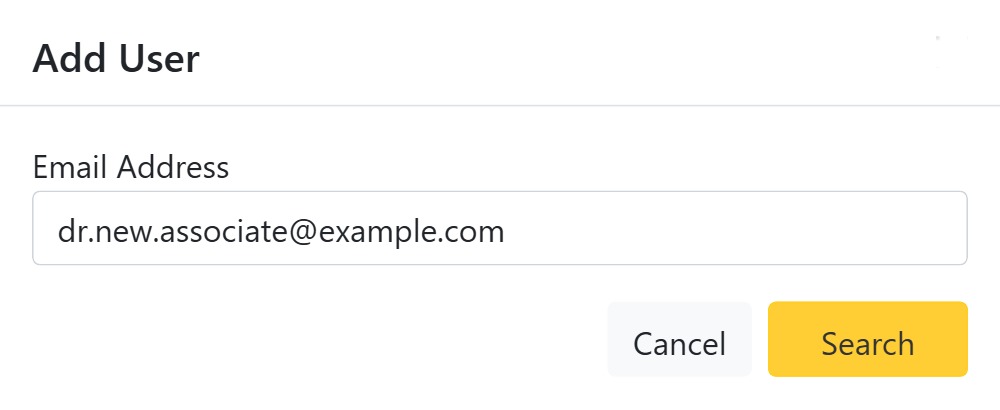
Click Add User and enter the person’s email address, then Search:
- If they already have a CAPS28 account, CAPS28 finds it and you simply attach them to your clinic.
- If not, you create them by entering their first, middle and last name; CAPS28 provisions the login for that email.
Designation & access rights
When you add someone you set their Designation (their role in the practice) and tick their access rights — the specific areas they can use (for example patients, appointments, treatments, accounts, office settings). A user must have at least one right. These rights are what gate sensitive areas: only trusted staff should get Office settings or Accounts.
The member details page
Open a team member to reach their details page — their photo, name and designation at the top, a Remove button (for everyone except the owner), and a set of collapsible settings:
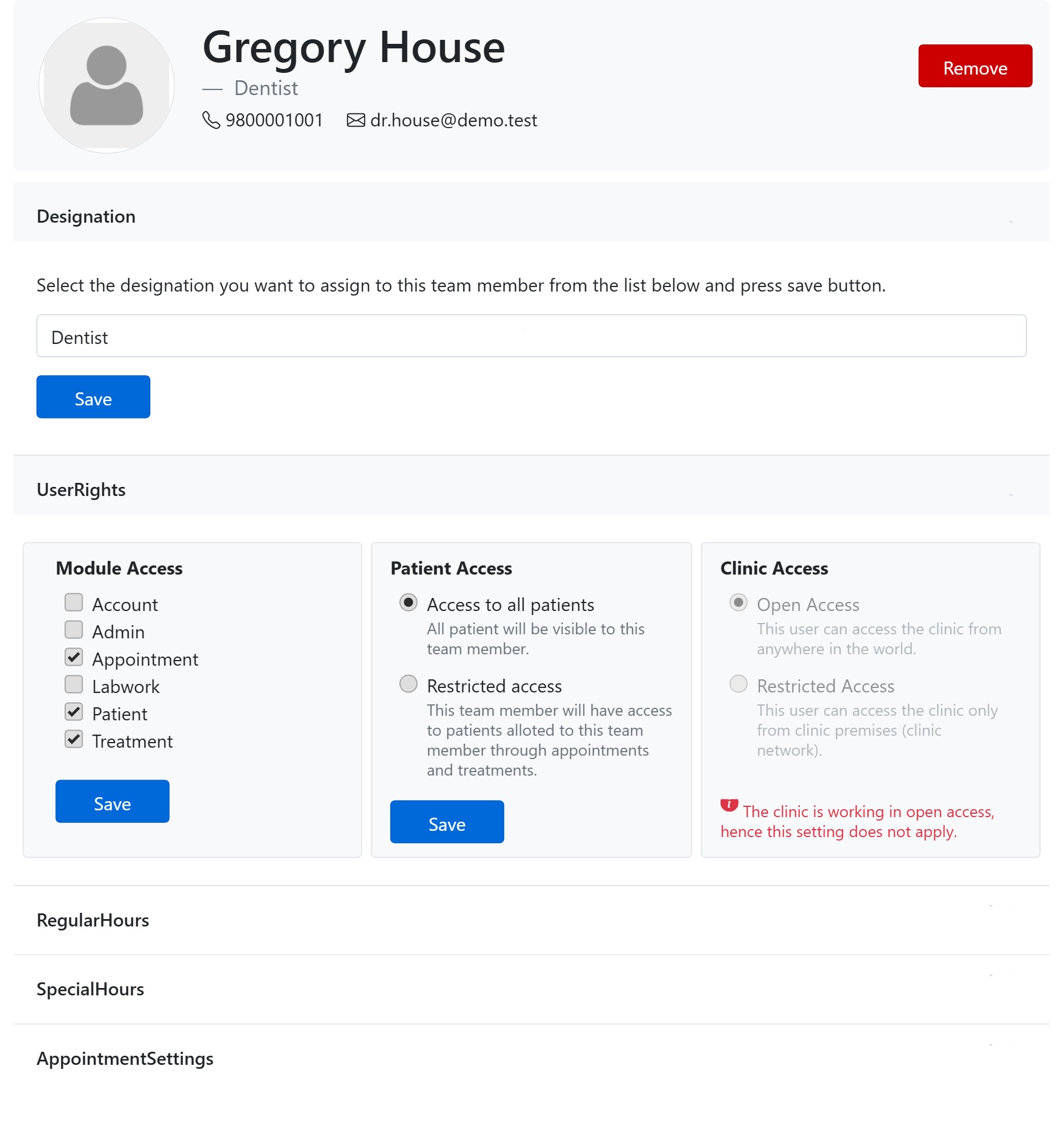
- Designation — change their role and save.
- User Rights — three panels side by side, each documented in its own guide: Module Access (which parts of CAPS28 they can open), Patient Access (all patients, or only those allotted to them) and Clinic Access (log in from anywhere, or only from the clinic network). The owner’s rights are locked.
- Regular Hours and Special Hours — this member’s own working hours (kept within the clinic’s business hours), and date-specific exceptions — the same controls as the clinic hours but per person.
- Appointment Settings — whether they appear in the scheduler, whether they get the daily WhatsApp schedule, and their colour & style on the appointment calendar (pick from a swatch palette).
Remove takes a member off the clinic (with a confirm) — note it also clears their scheduled appointments. Doctors added here become selectable providers on appointments, treatments, lab orders and bills.