
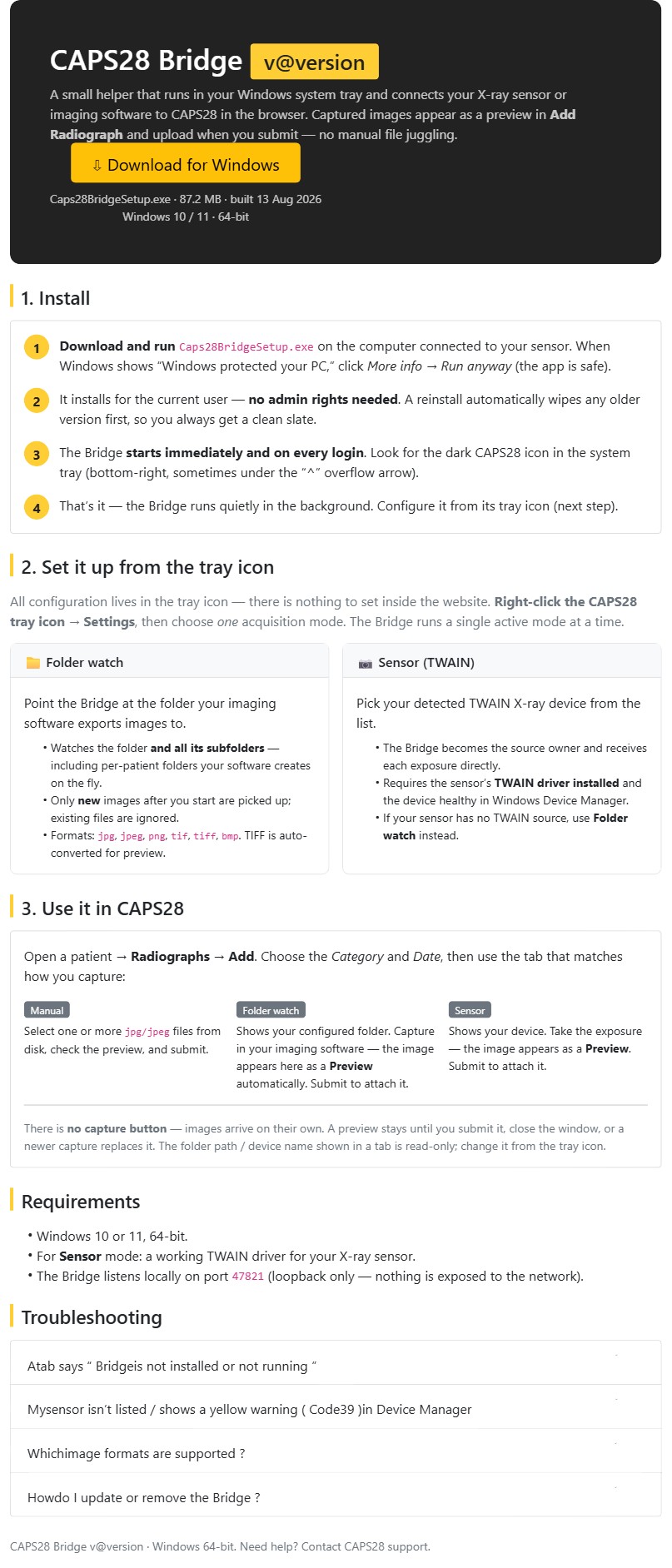
The RVG-Bridge is a small helper application that runs in your Windows system tray and connects your X-ray sensor or imaging software to CAPS28 running in the browser. With it installed, images you capture appear as a live Preview inside Add Radiograph and attach when you submit — no exporting, renaming or manually hunting for files.
The Bridge is optional: you can always upload films with the Manual tab. It exists to make sensor and imaging-software workflows effortless.
1. Install
- On the computer connected to your sensor, download and run
Caps28BridgeSetup.exe(the download link is on the Bridge page inside CAPS28). If Windows shows “Windows protected your PC”, click More info → Run anyway. - It installs for the current user with no admin rights. Reinstalling cleanly replaces any older version first.
- The Bridge starts immediately and on every login. Look for the dark CAPS28 icon in the system tray (bottom-right, sometimes under the “^” overflow arrow).
2. Configure it from the tray icon
All settings live in the tray icon — there is nothing to configure inside the website. Right-click the CAPS28 tray icon → Settings, then choose one acquisition mode (the Bridge runs a single active mode at a time):
- Folder watch — point the Bridge at the folder your imaging software exports to. It watches that folder and all its subfolders, including per-patient folders created on the fly. Only new images (captured after you start) are picked up; existing files are ignored. Formats: JPG, JPEG, PNG, TIF, TIFF, BMP (TIFF is auto-converted for preview).
- Sensor (TWAIN) — pick your detected TWAIN X-ray device from the list. The Bridge receives each exposure directly. This needs the sensor’s TWAIN driver installed and the device healthy in Windows Device Manager. If your sensor has no TWAIN source, use Folder watch instead.
3. Use it in CAPS28
Open a patient → Radiographs → Add, choose the category and date, then use the tab that matches how you capture — Folder watch or Sensor. Capture in your software or take the exposure; the image appears as a Preview on its own and attaches when you submit. There is no capture button, and the folder path / device name shown in the tab is read-only (change it from the tray icon).
Requirements
- Windows 10 or 11, 64-bit.
- For Sensor mode: a working TWAIN driver for your X-ray sensor.
- The Bridge listens locally on port
47821— loopback only, so nothing is exposed to the network.
Troubleshooting
- A tab says “Bridge is not installed or not running” — install the Bridge (or make sure the tray icon is running), then close and reopen that tab. Seeing the folder path or device name confirms it is working.
- Sensor not listed / yellow warning (Code 39) in Device Manager — some older sensor drivers are signed in a way modern Windows blocks. Install the newest signed driver from your sensor vendor if one exists; otherwise use Folder watch, which needs no TWAIN.
- Supported formats — JPG, JPEG, PNG, TIFF, BMP. TIFF is converted automatically. DICOM (
.dcm) is planned for a later version. - Update or remove — update by running the latest installer (it replaces the old version cleanly); remove via Windows Settings → Apps → Installed apps → “RVG-Bridge” → Uninstall.