
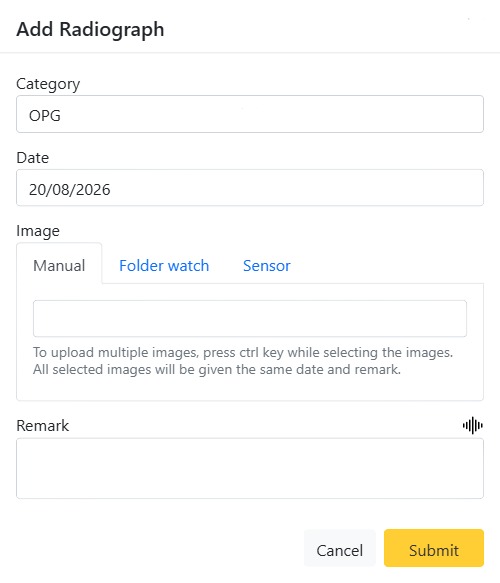
CAPS28 gives you three ways to get an X-ray into a patient’s record, all from the same Add Radiograph window. Whichever you use, you first set where the film belongs and when it was taken, then bring the image in and submit.
Open the Add Radiograph window
On the patient’s Radiographs tab, click Add, or click the dotted + on a specific IOPA position to pre-fill that slot.
Step 1 — Category and Date
- Category — choose the position or view: an IOPA position (Anterior, Molar, Premolar, Canine for each quadrant, or a Bitewing), Occlusal (Maxillary / Mandibular), OPG, or Miscellaneous. If you opened the window from a + on the map, this is already set.
- Date — the date the radiograph was taken.
Step 2 — bring in the image
The Image area has three tabs. Use the one that matches how you capture:
Manual
Select one or more .jpg/.jpeg files from the computer. Hold Ctrl while selecting to add several at once — they are all filed under the same category, date and remark. Thumbnails appear so you can confirm before submitting. This is the fallback that always works, with no extra software.
Folder watch
Shows the folder the RVG-Bridge is watching — typically the export folder of your imaging software. Take the X-ray in your imaging software as usual; the new image appears here as a Preview automatically, ready to submit. There is no capture button — images arrive on their own.
Sensor
Shows the TWAIN X-ray device the RVG-Bridge is connected to. Take the exposure; the image appears as a Preview and is ready to submit. Again, no capture button — the exposure flows straight in.
Folder watch and Sensor both require the RVG-Bridge to be installed and running on the computer — see RVG-Bridge. If it isn’t installed, those tabs show a short prompt with a download link, and you can still use the Manual tab.
Step 3 — Remark and Submit
- Remark — an optional note about the film. A speech-to-text button lets you dictate it.
- Submit — the film is attached to the patient in the chosen position and appears immediately on the Radiographs tab with its date.
Supported formats
Manual upload accepts JPG / JPEG. The Bridge (folder watch and sensor) additionally handles PNG, TIFF and BMP, converting TIFF automatically so it previews correctly. DICOM (.dcm) is not supported yet.