
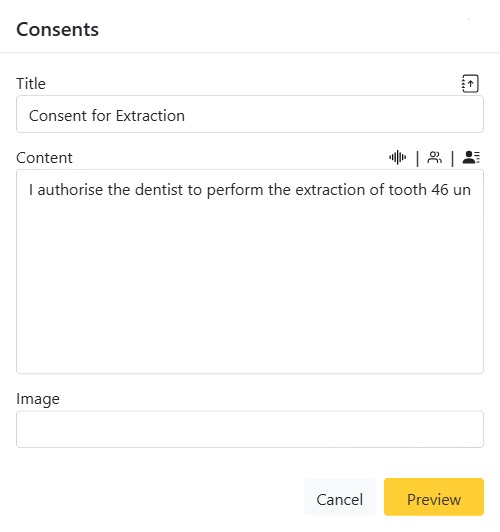
The Consents tab manages informed-consent documents — the signed agreements a patient gives before a procedure. CAPS28 lets you build a consent from a reusable template, personalise it for the patient and procedure, and capture the patient’s signature digitally, so consent is documented, dated and easy to retrieve.
Creating a consent
- On the Consents tab, click New.
- Give the consent a Title, or pick one of your clinic’s consent templates from the templates dropdown — the template’s wording fills the Content automatically.
- Edit the Content as needed. You can dictate with speech-to-text, use the Providers dropdown to insert the treating doctor’s name, and attach an image (such as a diagram) if it helps.
- Click Preview to review the finished consent, then save it against the patient.
Getting it signed
Once created, a consent can be sent to the patient to sign — on the CAPS28 mobile app or through a link — or signed on a device at the chair. The tab tracks each consent’s Created On and Submitted On dates and its status, so you can see at a glance which consents are still outstanding and which are signed and on file.
Viewing and printing
Any consent can be opened to view the full signed document and printed for the paper record. Because the wording comes from your approved templates, every consent is consistent and complete.
Consent templates are maintained in clinic setup — see Consent Templates under Office / Admin, where you can also add a new template on the fly.