
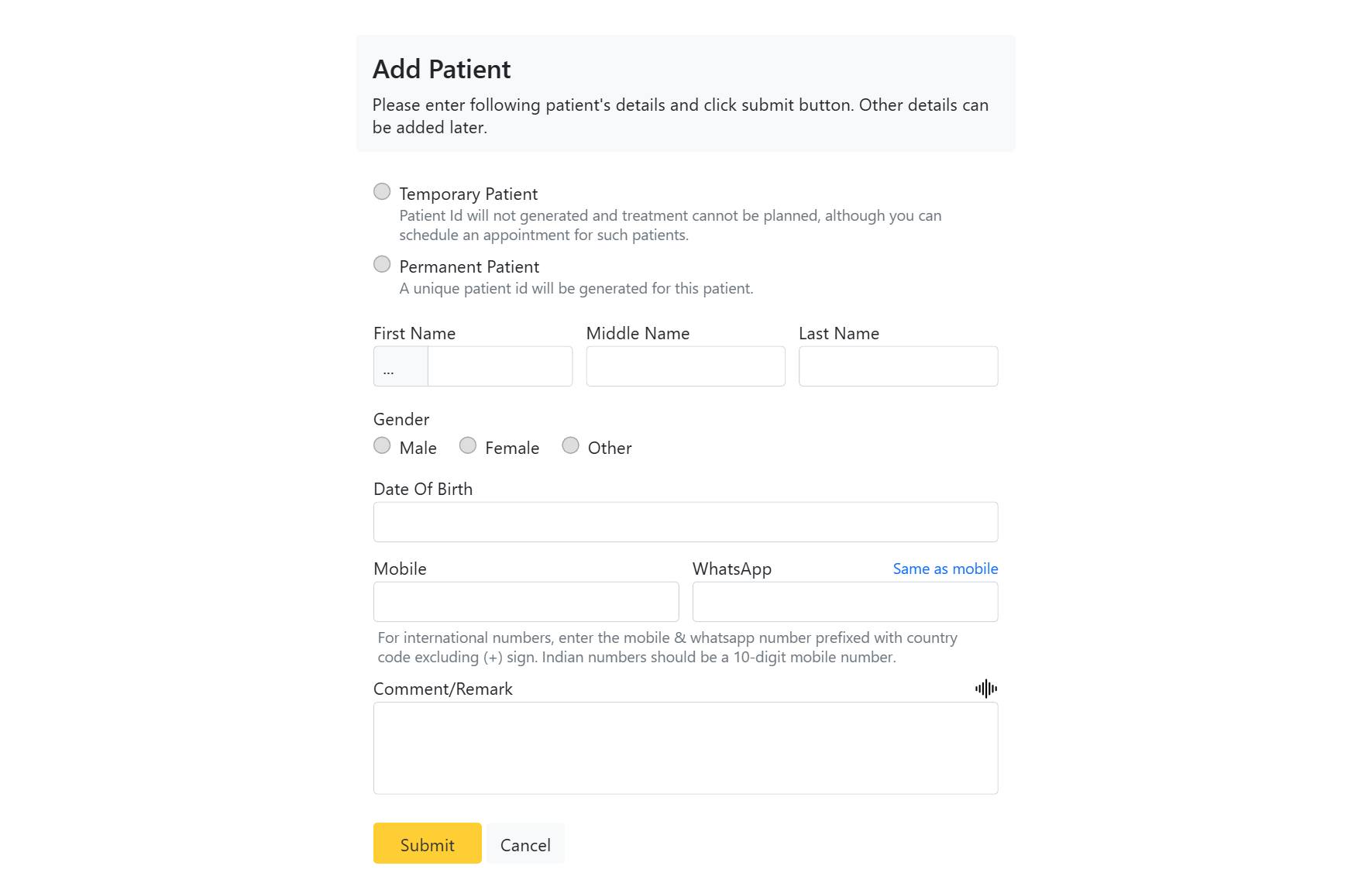
Registering a patient is usually the first thing you do when someone new contacts or visits your dental clinic. CAPS28 makes this quick, and once the record exists you can immediately book an appointment, start a treatment plan, upload documents, and raise bills against it. This guide walks through every field on the Add Patient form.
How to register a new patient, step by step
- Click Patients in the top navigation, then click the Add Patient button on the top right of the list.
- Choose the registration type:
- Temporary Patient — use this for a quick enquiry or a walk-in. No unique patient ID is generated and you cannot plan treatment yet, but you can still book an appointment. Temporary patients can be converted to permanent later.
- Permanent Patient — use this for anyone joining the practice properly. CAPS28 generates a unique patient ID that stays with the record for life.
- Enter the patient’s First Name, optional Middle Name and Last Name.
- Select the Gender (Male, Female or Other).
- Enter the Date of Birth — CAPS28 uses this to show the patient’s age throughout the app.
- Enter the Mobile number and the WhatsApp number. Tick Same as mobile to copy the mobile number into the WhatsApp field. These numbers are used for appointment reminders and recall messages, so enter them carefully. International numbers should include the country code; Indian numbers should be a plain 10-digit mobile number.
- Add any Comment / Remark that the front desk or clinician should know.
- Click Submit to save.
The new patient record opens automatically, ready for you to book an appointment or add clinical information.
Good practice when registering patients
- Search first. Before creating a record, search the existing list to make sure the patient is not already registered — this avoids duplicate records that split a patient’s history.
- Capture contact details up front. A correct mobile and WhatsApp number means reminders and recalls will reach the patient automatically.
- Use permanent registration for anyone who will be treated, so their treatments and billing have a stable patient ID.
Fields captured
The Add Patient form captures the essentials for a record: Salutation, First / Middle / Last name, Gender, Date of birth, Mobile and WhatsApp numbers, and a short remark. Everything except the name can be completed or corrected later from the record’s Edit button, so a busy front desk can register a walk-in in seconds and fill in the rest afterwards.