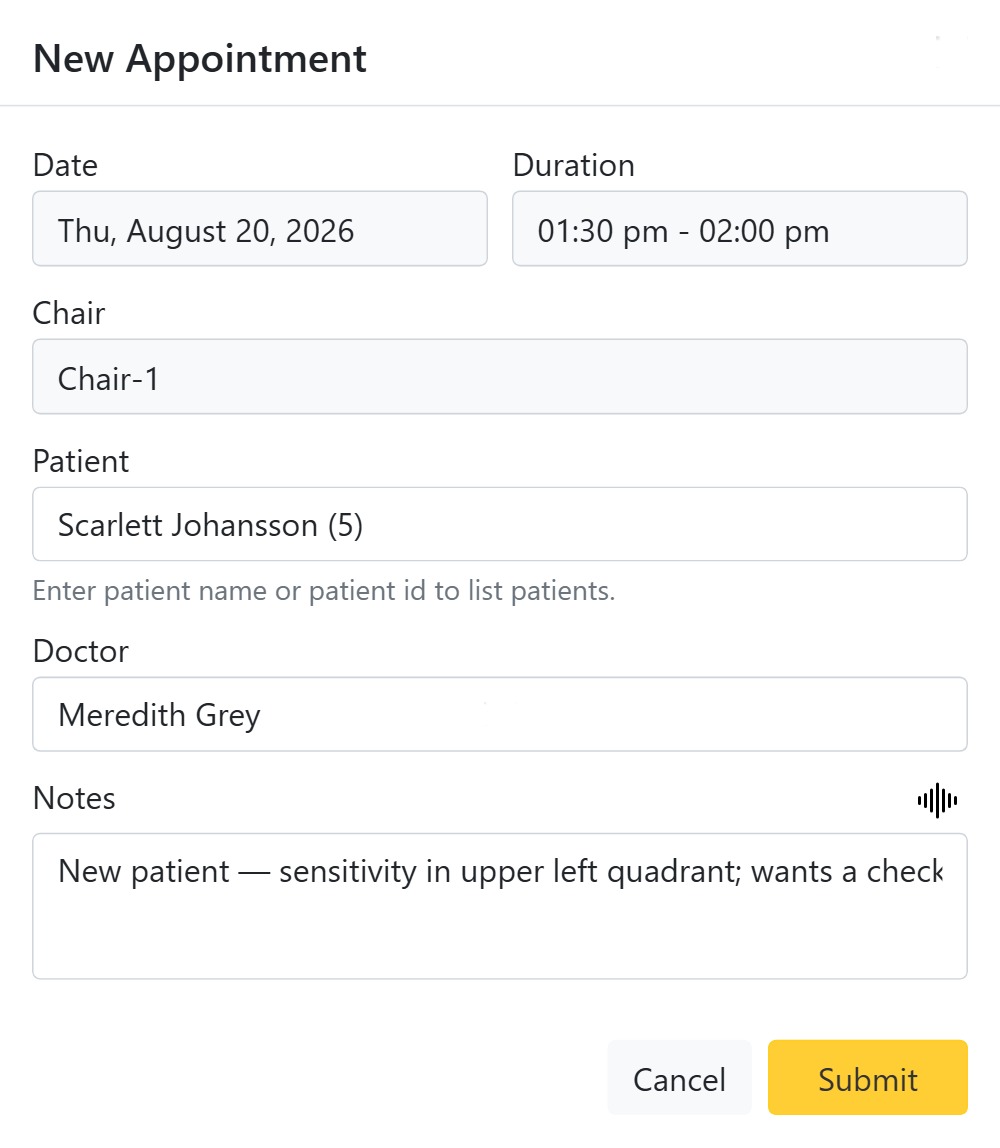
Booking is done straight from the calendar, so the time and chair are chosen simply by clicking where you want the appointment to go. This guide covers the whole flow, every field on the form, and the checks CAPS28 runs before it confirms a slot.
How to book an appointment, step by step
- Open Appointments and navigate to the day you want (see Calendar views & navigation).
- Click an open time slot in the chair column where the patient will be seen. The New Appointment form opens with the Date, Duration and Chair already filled in from the slot you clicked. To make the appointment longer, drag across several slots before releasing.
- In the Patient box, start typing the patient’s name or patient ID and pick them from the list. (If the patient is not registered yet, add them first from the Patients module.)
- Choose the Doctor who will see the patient. Only providers who are marked available and have working hours that day appear in the list.
- Add a Note describing the reason for the visit — for example “New patient, sensitivity upper left”. You can type it or use the microphone (speech-to-text) button to dictate it.
- Click Submit. The appointment appears on the calendar as Scheduled, and — if the patient has a mobile or WhatsApp number and your clinic has messaging enabled — a confirmation is sent and reminder messages are scheduled automatically (see Status workflow & reminders).
The checks CAPS28 runs before confirming
To stop double-bookings and impossible slots, the system validates every booking and will explain if it cannot proceed:
- Within clinic hours — the slot must fall inside the clinic’s opening hours for that day (regular hours, or any special hours you have set). Otherwise you see “Time slot not available.”
- Chair free — the chair must not already have an appointment overlapping that time, or you see “Appointment already present for the selected time slot.”
- Doctor available — the chosen doctor must be working at that time. If not, CAPS28 tells you the doctor is unavailable and lists the hours they are available that day, so you can pick a slot that fits.
Tips
- Search the Patient box by mobile number or patient ID if you have two patients with similar names.
- Set a realistic duration — it decides how much of the diary the appointment blocks and helps the surgery plan the day.
- You can also start a booking from a patient’s record, which pre-selects that patient for you.
The New Appointment form in detail
Clicking an open slot opens the New Appointment form with the Date, Duration and Chair already filled from the slot you clicked (shown read-only). You then complete:
- Patient — start typing a name or patient id and pick from the auto-complete list; the record links to the appointment.
- Provider — choose the doctor. CAPS28 checks the provider’s availability for that slot — if the time doesn’t fit their working hours it flags it and shows the windows they are available, so you don’t double-book or book outside hours.
- Notes — any note for the visit; you can dictate it with speech-to-text.
Submit books the appointment, which appears on the calendar in the provider’s colour and triggers the automatic confirmation/reminder messages.