CAPS28 gives you three ways to look at the appointment book — a single day, a range of days, and a read-only view of the past — plus quick controls to move around. Knowing them makes managing a busy diary much faster.
Moving to a different day
- Use the previous (<) and next (>) arrows above the calendar to step one day at a time.
- Click the date / calendar picker to jump straight to any date.
- Double-click a date in the picker to open that single day in day view.
Day view
The default. Chairs are columns, time runs down in 10-minute rows between your clinic’s open and close times for that day, and appointments show in full with patient, doctor, time and note. This is the view you book and manage from — see the overview for how to read it.
Range (multi-day) view
Select a date range in the picker to see several days side by side. This is ideal for finding the next free day for a patient, or for getting a feel for how full the week ahead is. Days the clinic is closed are shown as such, so you never offer a slot on a day off.
Past-day view
Opening a date in the past shows a read-only record of what happened that day — who was booked, with whom, and their final status. You cannot book into the past, but the history is invaluable for follow-ups, audits and understanding a patient’s attendance.
Tip: fit more chairs on screen
On narrower screens CAPS28 automatically adjusts how many chair columns it shows at once. On a large monitor the whole surgery fits comfortably; on a laptop or tablet you may see fewer chairs and can scroll across.
The day view, range & past days
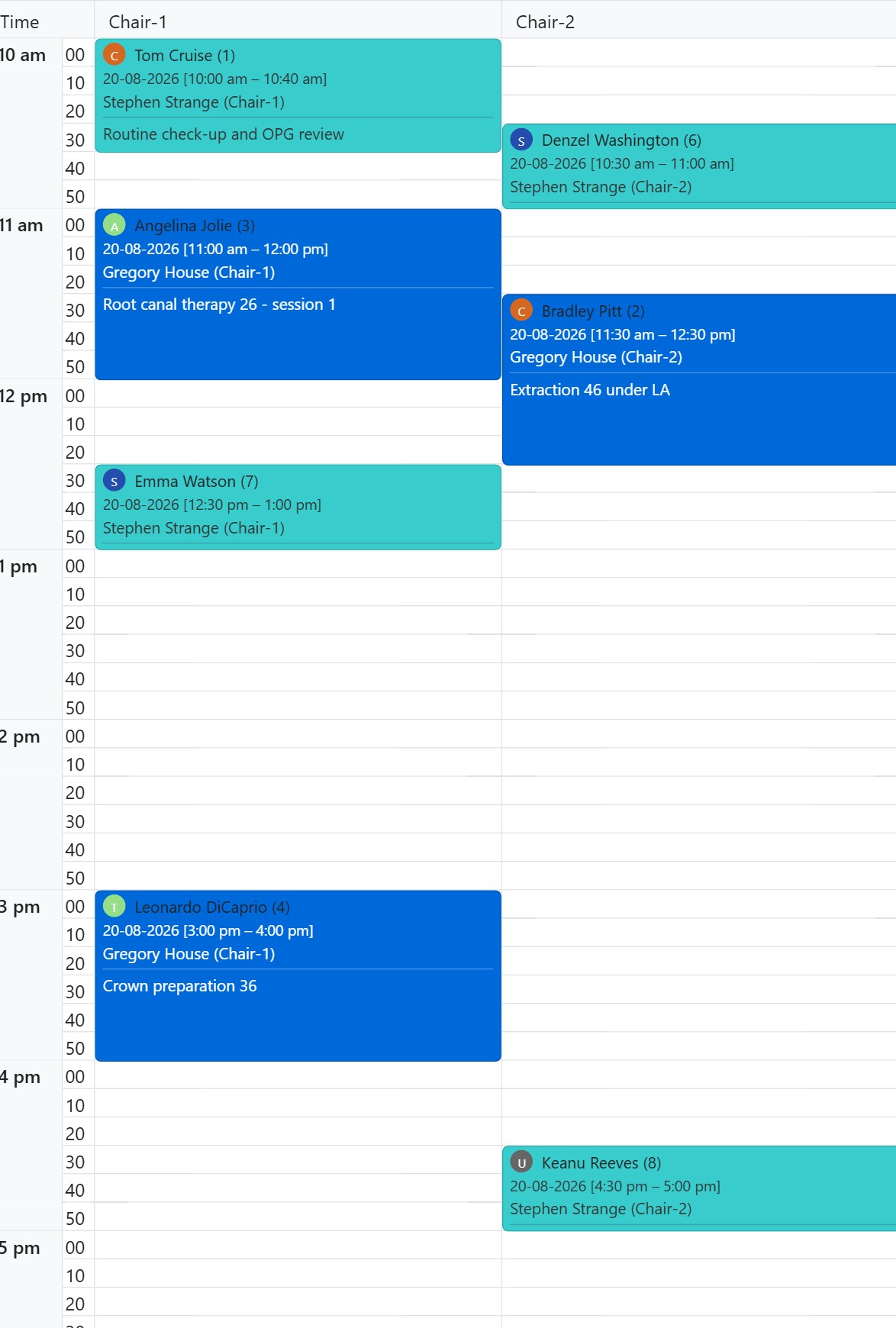
The scheduler shows chairs as columns and the day in short time rows, with office hours shaded and each appointment in its provider’s colour. Use the date controls to move day by day or jump to today. Beyond the single day you can open a multi-day range view to see several days side by side, and a past-day view to look back at a previous day’s schedule as read-only history — useful for reviewing what happened without any risk of changing it.