
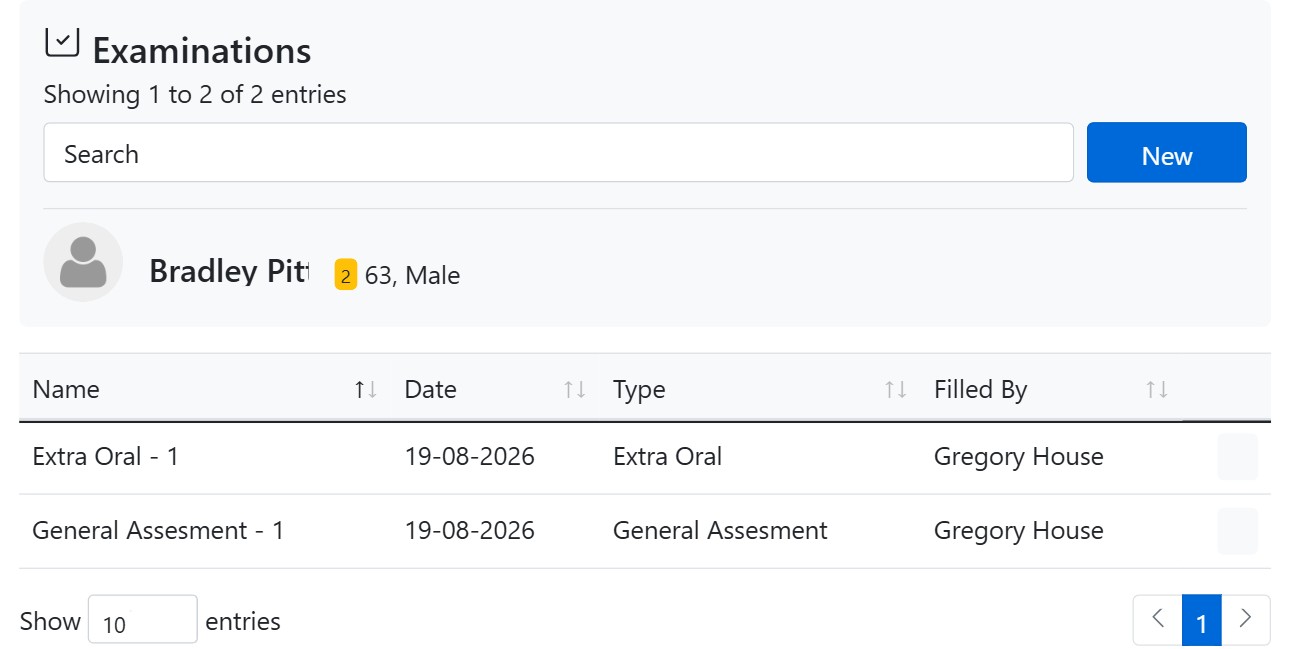
The Examinations section of the patient record is where you record and revisit structured clinical examinations. Instead of loose free-text notes, CAPS28 gives you three guided examination formats that walk a clinician through the head, neck and mouth region by region, so nothing is missed and every finding is captured in a consistent, comparable way. Because every examination is dated and stored against the patient, the tab doubles as a longitudinal record you can use to show how a patient’s oral and general health has changed between visits.
The three examination types
Click New on the Examinations tab and CAPS28 asks which format you want to complete:
- General Assessment — a single-page snapshot of the patient’s overall state: mental orientation, physical appearance, stature, posture, gait, communication, and a full set of vital signs (pulse, blood pressure, respiration, temperature).
- Extra Oral — a guided, 29-step examination of the face, head and neck: facial form and symmetry, hair, ears, nose, salivary and thyroid glands, TMJ, lymph nodes and more.
- Intra Oral — a guided, 44-step examination of the soft tissues inside the mouth, quadrant by quadrant, with a clickable oral-anatomy map so you always know which region you are recording.
How the guided examinations work
The Extra Oral and Intra Oral formats present one region at a time. Each step shows a numbered progress badge (for example “Question 8 of 44”), a short instruction on what to look for, and either quick Normal / abnormal options or free-text fields for describing an anomaly’s type, shape, size, colour, consistency, edges, tenderness and texture. Most regions default to Normal, so a healthy examination is fast to complete — you only slow down where there is something to describe. You move through the examination with the navigation controls, and the accompanying anatomy diagram highlights the region currently being assessed.
What you can do on the Examinations tab
- Review past examinations — the table lists each examination with its Name, Date, Type and the clinician who Filled it in.
- Search — use the search box to jump to a specific examination.
- Record a new examination — click New and pick General Assessment, Extra Oral or Intra Oral.
- Download a PDF — every row has a PDF button so you can print or share a clean copy of the examination for records, referrals or medico-legal documentation.
How to add an examination
- Open the patient record and choose Examinations from the left sidebar.
- Click New and select the examination type.
- Work through the form, region by region, recording your findings.
- Save. The examination is added to the list, stamped with today’s date and your name, and is instantly available as a PDF.