
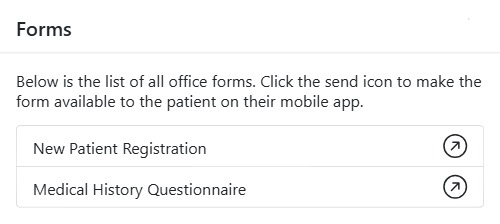
The Forms tab turns your clinic’s paperwork into digital forms the patient can fill in themselves. Instead of printing and re-keying, you send a form to the patient, they complete it on their phone or through a link, and the answers come straight back into their record — ready to view or print.
Sending a form to a patient
- Open the patient record and choose Forms, then click New.
- A list of your clinic’s office form templates appears. Click the send icon next to the form you want.
- The form is added to the patient’s list with a status of not yet submitted, and becomes available to the patient on the CAPS28 mobile app.
The public form link
For a patient who isn’t on the app, every unsubmitted form has a Form URL — a shareable public link. Open the URL action, copy the link, and send it by SMS, email or WhatsApp; the patient opens it in any browser and fills the form there. As soon as they submit, the status turns to a green tick and the Submitted On date is recorded.
Managing submitted forms
- View — open a read-only copy of the patient’s answers.
- Print — print the completed form for the paper chart or a referral.
- Delete — remove a form sent in error.
- Search — filter the list by form name.
Forms are built once as reusable templates in clinic setup — see Form Templates under Office / Admin. If no templates exist yet, the New window prompts you to create one.