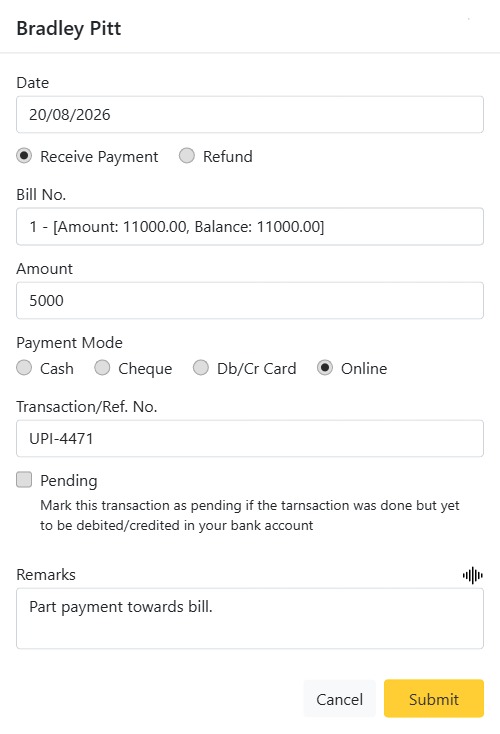
Every patient has a running account ledger — a dated list of everything they have been charged and everything they have paid, with a live balance. This is where the front desk takes payments and where you can print a patient’s statement.
Opening a patient’s account
Go to Accounts → Patient and click Select Patient (search by name or patient ID). The header shows the patient and their current balance — shown in red when they owe money. A date-range picker scopes the ledger, and Print produces a statement of the selected rows.
Reading the ledger
Each row shows the Date, Remarks (and payment mode), transaction Status, the Amount — green arrow in, red arrow out — and the running Balance. Charges from bills increase the balance; receipts reduce it.
Recording a payment
- Click Payment.
- Choose the Type: Receive Payment (a receipt) or Refund.
- For a receipt, pick the Bill it is against — the dropdown lists the patient’s pending bills with their amount and outstanding balance — and enter the Amount (you cannot pay more than the bill’s pending amount).
- Choose the Payment Mode: Cash, Cheque, Debit/Credit Card or Online. Cheque, card and online reveal a reference-number field so the payment is traceable.
- Add a Remark (with speech-to-text) and submit. The balance updates immediately.
Pending transactions
A payment that has been taken but not yet cleared in the bank (for example a cheque) can be marked Pending. Pending rows sit in the ledger flagged “pending” in red and don’t count toward the cleared balance until you settle them.
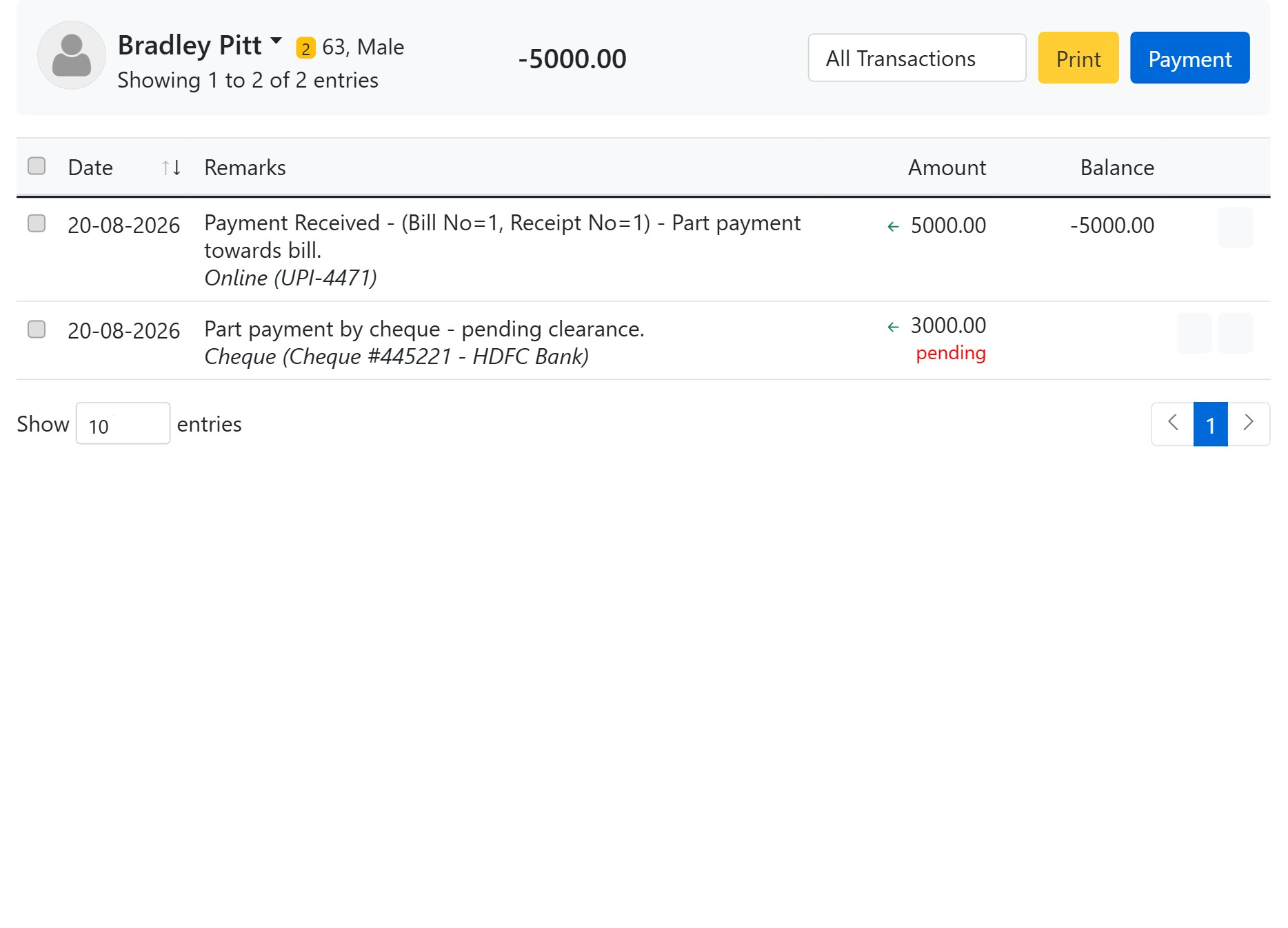
Each pending row carries its own actions: Payment / Complete it once the money clears (you set the completion date and it joins the running balance), or Delete it if the cheque bounced or the payment fell through. Until then the patient’s cleared balance reflects only settled money, so your accounts never overstate what you actually hold.