
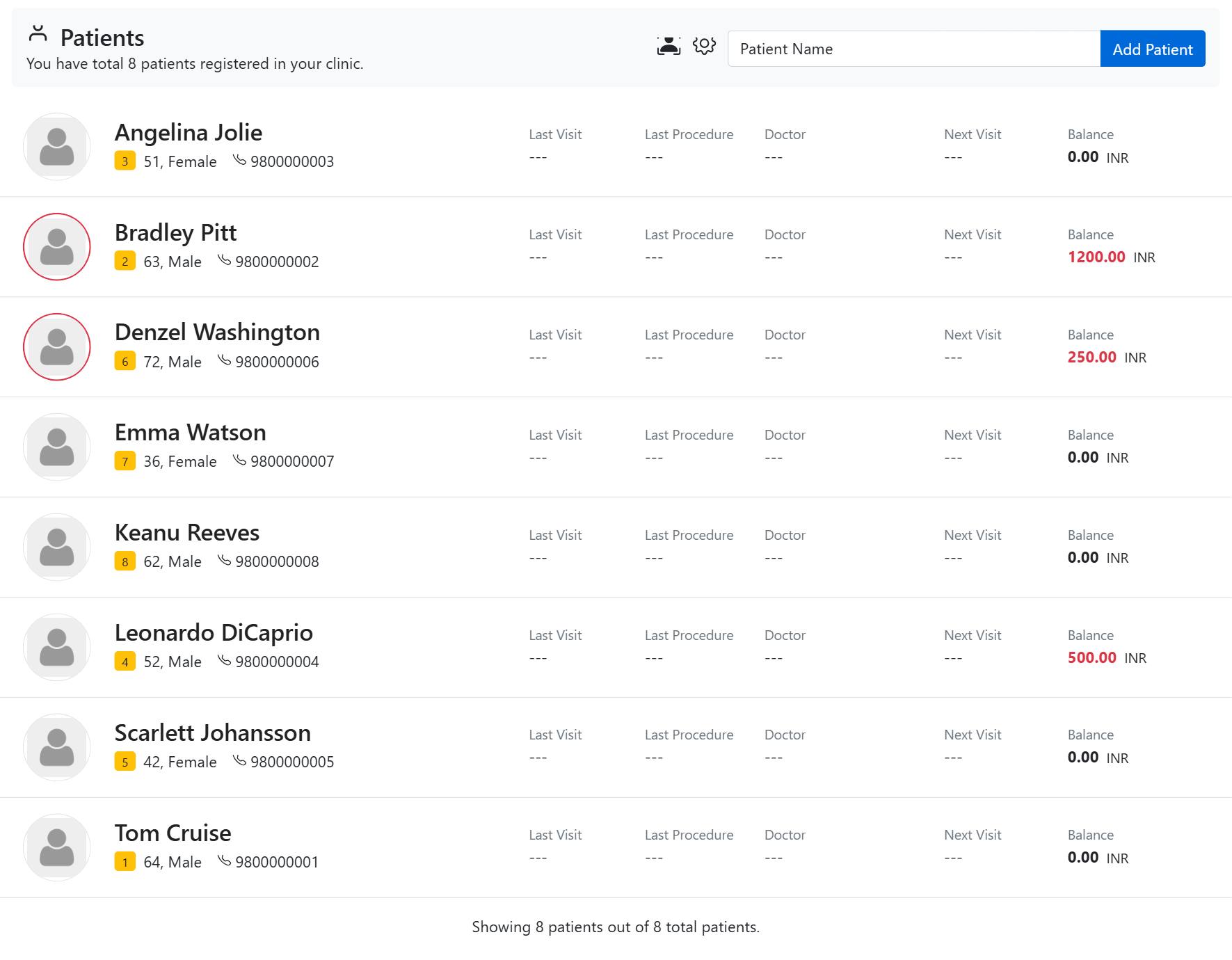
With hundreds or thousands of patients in your CAPS28 register, fast searching is essential. Whether a patient is calling to rebook, arriving for treatment, or paying a bill, you can find and open their record in seconds.
How to search for a patient
- Click Patients in the top navigation to open the patient list.
- Type into the Patient Name search box at the top of the list. You can search by name or by mobile number.
- The list filters as you type — partial matches work, so a few letters of the name or the last digits of the mobile number are enough.
Opening the record you found
Once you have found the patient you have several options:
- Click the patient’s name to open the full patient record.
- Click Go to treatments to jump straight to that patient’s treatment history.
- Click Go to accounts to open their billing and payments.
If you cannot find the patient
If nobody matches your search, the patient may not be registered yet, or the record may have been created with a different spelling or number. Try searching by mobile number instead of name. If they are genuinely new, register a new patient.