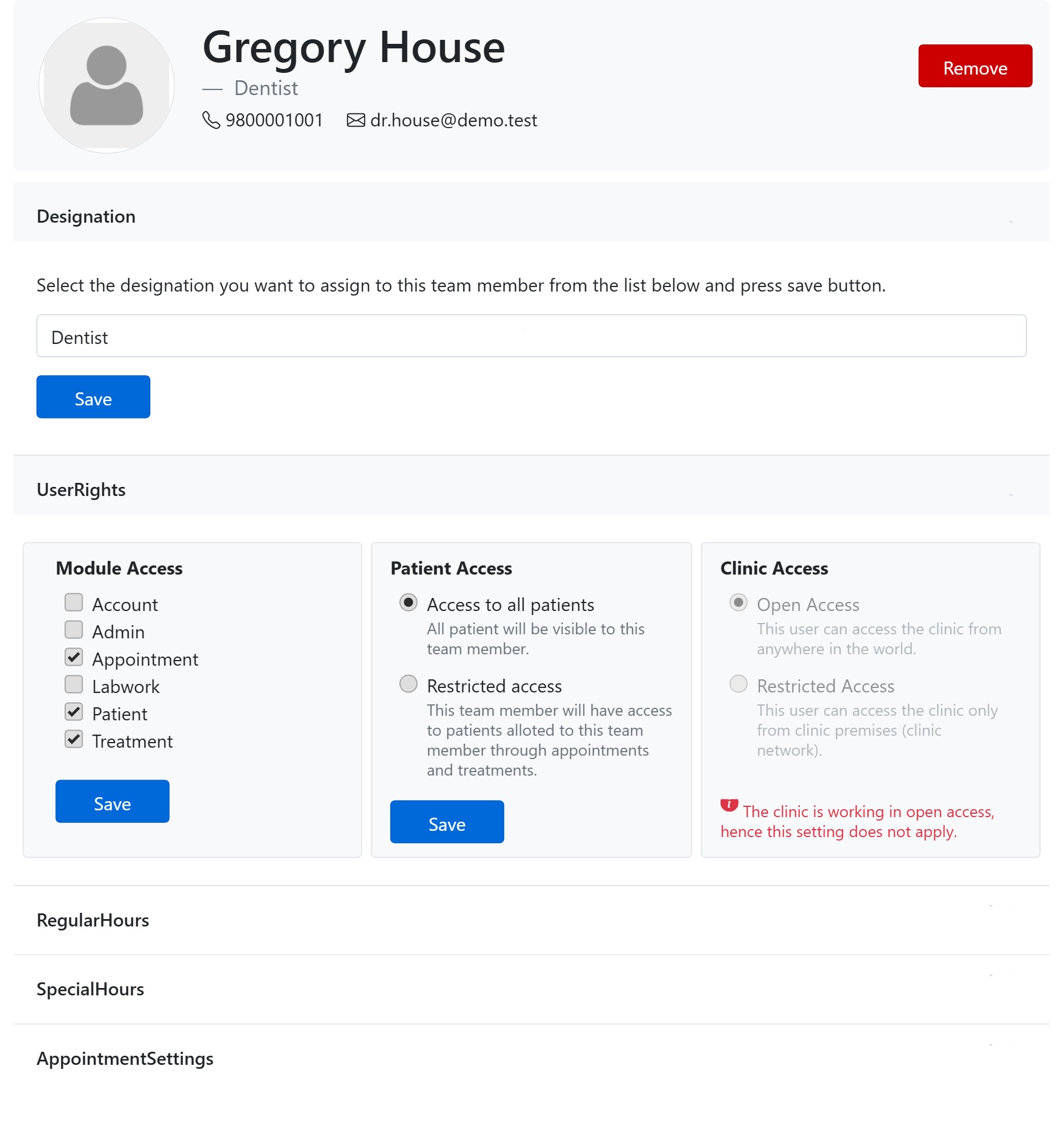
Clinic Access — shown in the app as Office Access — decides where a team member is allowed to log in from. It is the third User Rights panel on a member’s details page, with two options:
Open Access
This user can log in from anywhere in the world — any internet connection. This is the normal setting for staff who work remotely or need to reach the clinic outside the premises.
Restricted Access
This user can log in only from the clinic premises (the clinic’s network / whitelisted IP addresses). Use it to tie a role — say a front-desk login — to the building, so those credentials are useless from outside.
It depends on Clinic Security
This per-user setting only takes effect when the whole clinic is running in Restricted access under Clinic security & access control (that is where you enter the allowed IP addresses). If the clinic is in Open Access, the per-user option is greyed out with the note “The office is working in open access, hence this setting does not apply.” So set the clinic-wide IP restriction first, then choose per person who is confined to the premises and who may sign in from anywhere.
Good to know
- The owner’s setting is locked.
- Press this panel’s own Save to apply it.
- Pair it with Module Access (what they can open) and Patient Access (whose records they see).